> ## Documentation Index
> Fetch the complete documentation index at: https://docs-turbo.miracledex.net/llms.txt
> Use this file to discover all available pages before exploring further.
# How To Use
**Connecting Your Wallet**
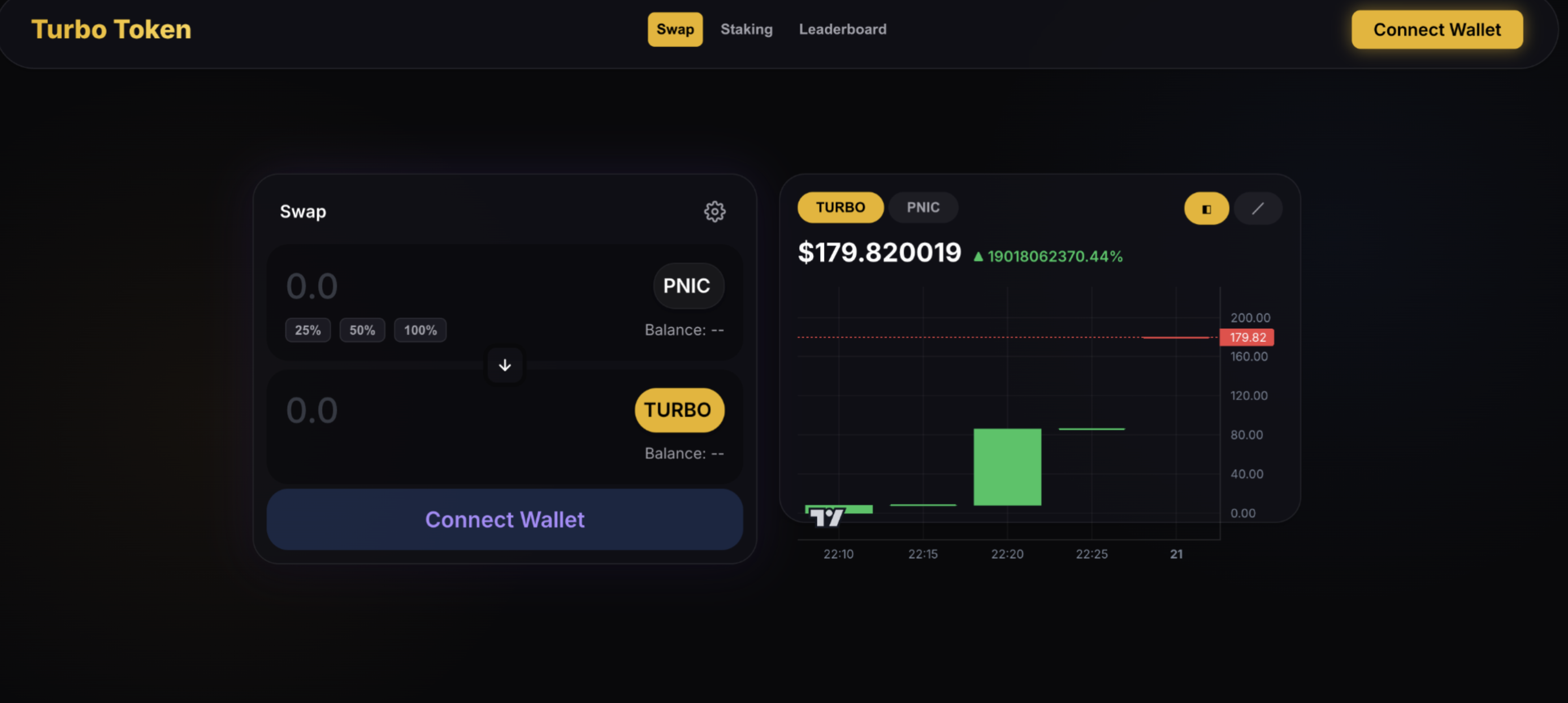 Before trading, staking, or participating in competitions, you must connect your wallet.
## **Where to Find It**
On the top-right corner of the interface, you will see a yellow **“Connect Wallet”** button. Additionally, inside the Swap panel, there is a large **“Connect Wallet”** button displayed when no wallet is connected.
Both buttons perform the same action.
## **Why You Need to Connect**
Connecting your wallet allows you to:
* Trade TURBO on the Swap page
* Stake TURBO tokens
* Appear on the Trading Leaderboard
* Receive competition rewards
* Claim staking rewards
Without connecting a wallet, the interface remains in read-only mode.
## **How to Connect**
* \*\*Step 1: \*\*Click the **“Connect Wallet”** button.
* A wallet selection modal will appear.
* Select your preferred wallet (e.g., MetaMask or other supported wallet).
* **Step 2:**
* Approve the connection request inside your wallet extension.
Once approved:
* Your wallet address will appear in the top-right corner
* Your token balances will load automatically
* Trading and staking buttons become active
## **After Connecting**
Once connected, you will be able to:
* View your PNIC and TURBO balances
* Execute swaps
* Stake tokens
* Participate in the daily competition
The “Connect Wallet” button will be replaced with your wallet address.
### **Interface Reference (Swap Panel State Before Connection)**
When not connected:
* Balances show as “--”
* Swap button is disabled
* Only “Connect Wallet” is clickable
This ensures safe interaction before wallet authorization.
**Swap Interface – Converting PNIC to TURBO**
Once your wallet is connected, you can use the **Swap panel** to exchange PNIC for TURBO. The Swap interface is located on the left side of the screen, with the price chart displayed on the right.
## **Swap Panel Overview**
The Swap panel allows you to:
* Enter the amount of PNIC you want to swap
* See your current PNIC balance
* Preview the TURBO amount you will receive
Execute the trade instantly
Before trading, staking, or participating in competitions, you must connect your wallet.
## **Where to Find It**
On the top-right corner of the interface, you will see a yellow **“Connect Wallet”** button. Additionally, inside the Swap panel, there is a large **“Connect Wallet”** button displayed when no wallet is connected.
Both buttons perform the same action.
## **Why You Need to Connect**
Connecting your wallet allows you to:
* Trade TURBO on the Swap page
* Stake TURBO tokens
* Appear on the Trading Leaderboard
* Receive competition rewards
* Claim staking rewards
Without connecting a wallet, the interface remains in read-only mode.
## **How to Connect**
* \*\*Step 1: \*\*Click the **“Connect Wallet”** button.
* A wallet selection modal will appear.
* Select your preferred wallet (e.g., MetaMask or other supported wallet).
* **Step 2:**
* Approve the connection request inside your wallet extension.
Once approved:
* Your wallet address will appear in the top-right corner
* Your token balances will load automatically
* Trading and staking buttons become active
## **After Connecting**
Once connected, you will be able to:
* View your PNIC and TURBO balances
* Execute swaps
* Stake tokens
* Participate in the daily competition
The “Connect Wallet” button will be replaced with your wallet address.
### **Interface Reference (Swap Panel State Before Connection)**
When not connected:
* Balances show as “--”
* Swap button is disabled
* Only “Connect Wallet” is clickable
This ensures safe interaction before wallet authorization.
**Swap Interface – Converting PNIC to TURBO**
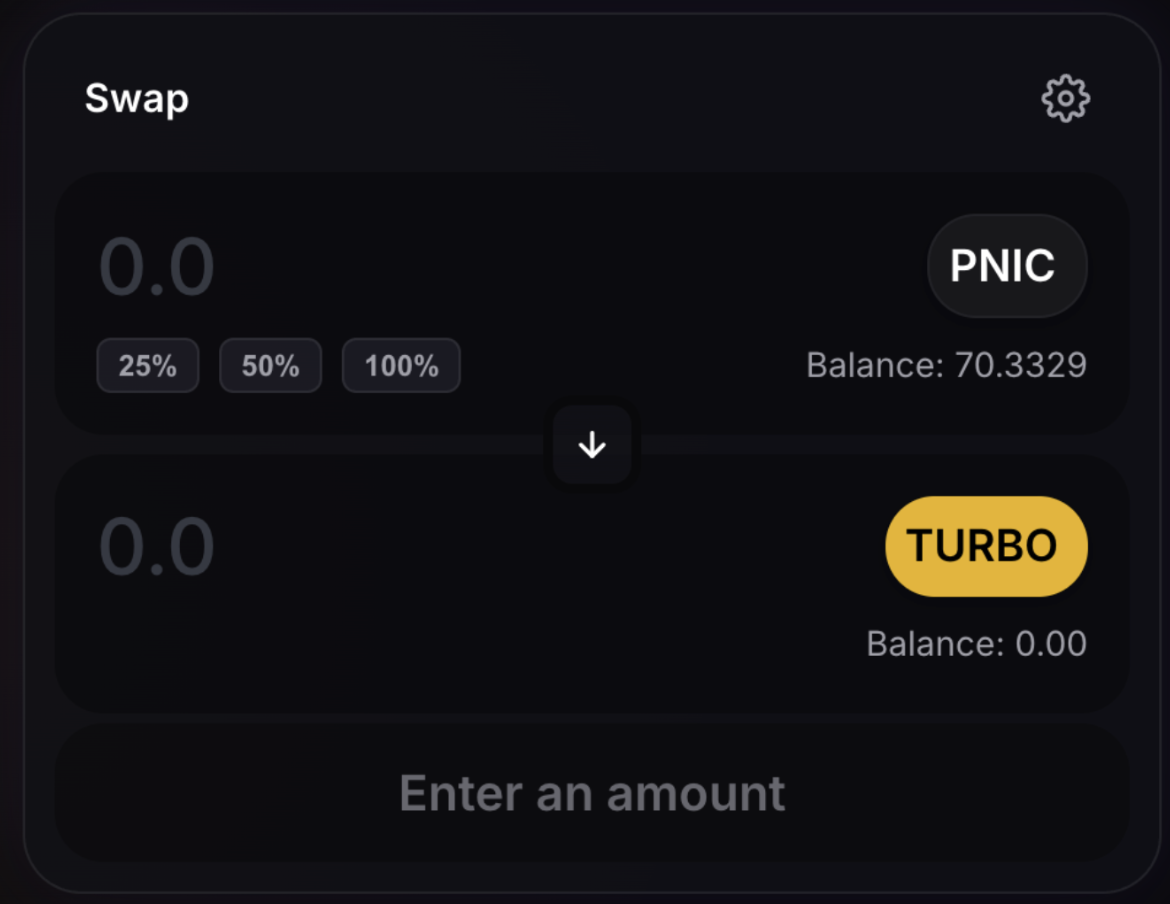
Once your wallet is connected, you can use the **Swap panel** to exchange PNIC for TURBO. The Swap interface is located on the left side of the screen, with the price chart displayed on the right.
## **Swap Panel Overview**
The Swap panel allows you to:
* Enter the amount of PNIC you want to swap
* See your current PNIC balance
* Preview the TURBO amount you will receive
Execute the trade instantly
 \
**Step-by-Step Guide**
### **Step 1: Enter PNIC Amount**
In the top input field:
* Select **PNIC**
* Enter the amount you want to swap
* Or use the quick buttons:
* 25%
* 50%
* 100%
These buttons automatically calculate a percentage of your available balance. Your current PNIC balance is displayed under the token selector.
### **Step 2: Review TURBO Output**
The lower field automatically displays:
* The amount of TURBO you will receive
* Your current TURBO balance
This value updates dynamically based on:
* Current liquidity
* Market price
* Input amount
### **Step 3: Execute the Swap**
Once an amount is entered:
* Click the Swap button
* Confirm the transaction inside your wallet
* Wait for blockchain confirmation
After confirmation:
* Your TURBO balance updates\
Your trade volume counts toward the daily competition
* The 4% transaction fee is automatically applied
## **Price Chart (Right Panel)**
On the right side of the screen, you will see the TURBO price chart.
The chart displays:
* Current TURBO price
* Percentage change
* Recent price movements
* Candlestick data
This allows you to:
* Monitor market conditions
* Time your entry
* Track price momentum
You can toggle between TURBO and PNIC views at the top of the chart.
## **What Happens After You Swap?**
When you buy TURBO:
* Your buy volume counts as **2x** in the daily trading competition
* You become eligible for leaderboard rewards
* You can immediately stake your TURBO
When you sell TURBO:
* Your sell volume counts as **1x**
**Important Notes**
* The 4% transaction fee applies to all buy and sell trades
* Transfers and staking are not taxed
* Always verify the amount before confirming
# **Staking – Earn Passive Rewards**
\
**Step-by-Step Guide**
### **Step 1: Enter PNIC Amount**
In the top input field:
* Select **PNIC**
* Enter the amount you want to swap
* Or use the quick buttons:
* 25%
* 50%
* 100%
These buttons automatically calculate a percentage of your available balance. Your current PNIC balance is displayed under the token selector.
### **Step 2: Review TURBO Output**
The lower field automatically displays:
* The amount of TURBO you will receive
* Your current TURBO balance
This value updates dynamically based on:
* Current liquidity
* Market price
* Input amount
### **Step 3: Execute the Swap**
Once an amount is entered:
* Click the Swap button
* Confirm the transaction inside your wallet
* Wait for blockchain confirmation
After confirmation:
* Your TURBO balance updates\
Your trade volume counts toward the daily competition
* The 4% transaction fee is automatically applied
## **Price Chart (Right Panel)**
On the right side of the screen, you will see the TURBO price chart.
The chart displays:
* Current TURBO price
* Percentage change
* Recent price movements
* Candlestick data
This allows you to:
* Monitor market conditions
* Time your entry
* Track price momentum
You can toggle between TURBO and PNIC views at the top of the chart.
## **What Happens After You Swap?**
When you buy TURBO:
* Your buy volume counts as **2x** in the daily trading competition
* You become eligible for leaderboard rewards
* You can immediately stake your TURBO
When you sell TURBO:
* Your sell volume counts as **1x**
**Important Notes**
* The 4% transaction fee applies to all buy and sell trades
* Transfers and staking are not taxed
* Always verify the amount before confirming
# **Staking – Earn Passive Rewards**
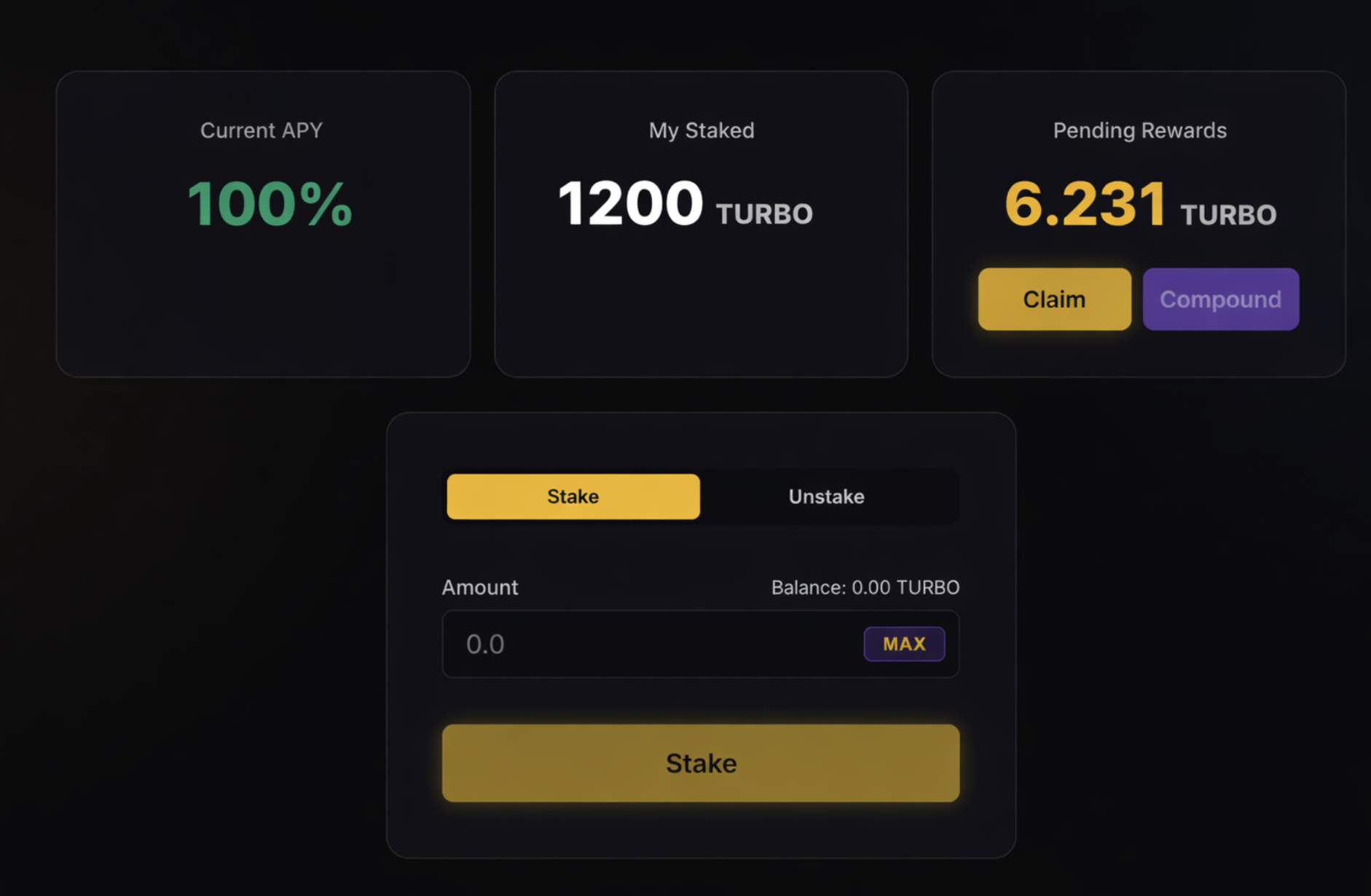 The Staking section allows users to earn additional rewards by locking their TURBO tokens into the staking contract.
* Staking rewards are funded by trading activity within the Turbo ecosystem.
## **Staking Dashboard Overview**
At the top of the staking page, you will see three key metrics:
### **Current APY**
Displays the estimated annual percentage yield based on current trading activity.
This value is dynamic and adjusts according to:
* Total trading volume
* Total tokens staked
**My Staked**
Shows the total amount of TURBO you currently have staked.
Example:
1200 TURBO
### **Pending Rewards**
Displays the TURBO rewards you have earned but not yet claimed.
You have two options:
* **Claim** → Withdraw rewards to your wallet
* **Compound** → Add rewards back into your staked amount
Compounding increases your future reward share.
# **🔒 How to Stake TURBO**
## **Step 1: Go to the “Stake” Tab**
* Make sure the **Stake** tab is selected (not Unstake).
## **Step 2: Enter Amount**
In the input field:
* Enter the amount of TURBO you want to stake
* Or click **MAX** to stake your full balance
Your available TURBO balance is displayed above the input field.
## **Step 3: Confirm Transaction**
Click the **Stake** button.
Then:
* Confirm the transaction inside your wallet
* Wait for blockchain confirmation
Once confirmed:
* Your staked amount updates
* You start earning rewards immediately
# **How to Unstake**
You can withdraw your tokens at any time.
**Step 1: Switch to “Unstake” Tab**
Select the **Unstake** tab.
## **Step 2: Enter Amount**
Enter how many TURBO tokens you want to unstake.
## **Step 3: Confirm**
Click **Unstake** and approve the transaction in your wallet.
There is:
* No lock-up period
* No penalty for unstaking
Your tokens return directly to your wallet after confirmation.
**How Rewards Work**
Staking rewards are funded by:
* 1% of every Turbo trade
Your share depends on:
* How much you stake
* Total tokens staked
* Total trading activity
**Claim vs Compound**
* \*\*Claim: \*\*Transfers rewards to your wallet.
* \*\*Compound: \*\*Reinvests rewards into staking for higher future yield.
* Compounding increases your share of the staking pool over time.
**Leaderboard: Trading Competition**
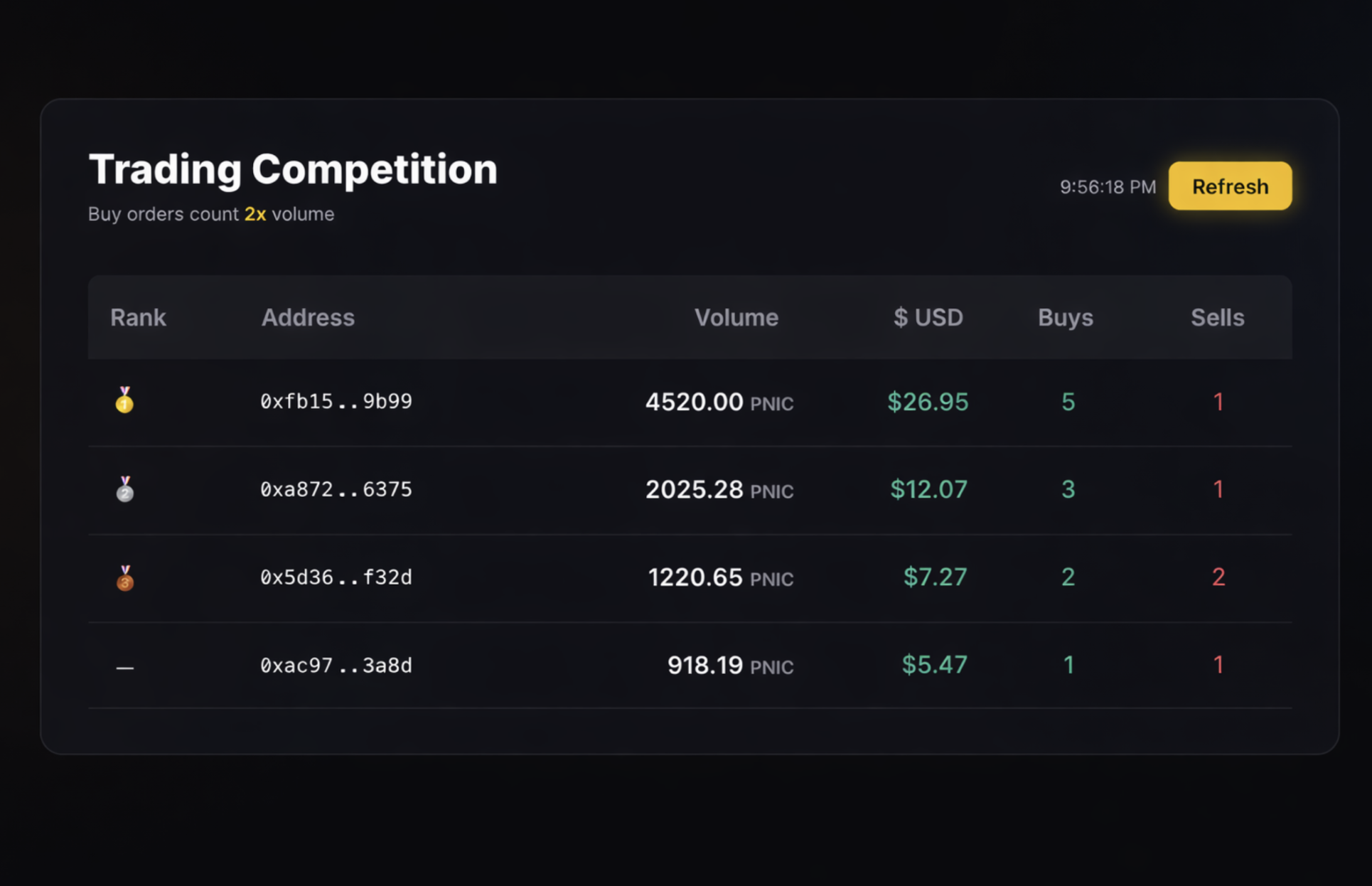
The **Leaderboard** tab displays the real-time ranking of traders participating in the daily Turbo Trading Competition.
Every buy and sell transaction contributes to your ranking.
Buy orders count as **2x volume**\
Sell orders count as **1x volume**
The leaderboard resets every 24 hours.
The Staking section allows users to earn additional rewards by locking their TURBO tokens into the staking contract.
* Staking rewards are funded by trading activity within the Turbo ecosystem.
## **Staking Dashboard Overview**
At the top of the staking page, you will see three key metrics:
### **Current APY**
Displays the estimated annual percentage yield based on current trading activity.
This value is dynamic and adjusts according to:
* Total trading volume
* Total tokens staked
**My Staked**
Shows the total amount of TURBO you currently have staked.
Example:
1200 TURBO
### **Pending Rewards**
Displays the TURBO rewards you have earned but not yet claimed.
You have two options:
* **Claim** → Withdraw rewards to your wallet
* **Compound** → Add rewards back into your staked amount
Compounding increases your future reward share.
# **🔒 How to Stake TURBO**
## **Step 1: Go to the “Stake” Tab**
* Make sure the **Stake** tab is selected (not Unstake).
## **Step 2: Enter Amount**
In the input field:
* Enter the amount of TURBO you want to stake
* Or click **MAX** to stake your full balance
Your available TURBO balance is displayed above the input field.
## **Step 3: Confirm Transaction**
Click the **Stake** button.
Then:
* Confirm the transaction inside your wallet
* Wait for blockchain confirmation
Once confirmed:
* Your staked amount updates
* You start earning rewards immediately
# **How to Unstake**
You can withdraw your tokens at any time.
**Step 1: Switch to “Unstake” Tab**
Select the **Unstake** tab.
## **Step 2: Enter Amount**
Enter how many TURBO tokens you want to unstake.
## **Step 3: Confirm**
Click **Unstake** and approve the transaction in your wallet.
There is:
* No lock-up period
* No penalty for unstaking
Your tokens return directly to your wallet after confirmation.
**How Rewards Work**
Staking rewards are funded by:
* 1% of every Turbo trade
Your share depends on:
* How much you stake
* Total tokens staked
* Total trading activity
**Claim vs Compound**
* \*\*Claim: \*\*Transfers rewards to your wallet.
* \*\*Compound: \*\*Reinvests rewards into staking for higher future yield.
* Compounding increases your share of the staking pool over time.
**Leaderboard: Trading Competition**
The **Leaderboard** tab displays the real-time ranking of traders participating in the daily Turbo Trading Competition.
Every buy and sell transaction contributes to your ranking.
Buy orders count as **2x volume**\
Sell orders count as **1x volume**
The leaderboard resets every 24 hours.
 \
**🏆 How Ranking Works**
Your rank is determined by:
* Total accumulated volume points
* Buy transactions weighted 2x
* Sell transactions weighted 0.5x
Example:
* 5 Buys + 1 Sell
* Higher buy volume increases ranking faster
The more you trade — especially buy — the higher you climb.
## **Refresh Button**
The **Refresh** button (top-right of the leaderboard) allows you to:
* Update rankings manually
* View the most recent competition data
Leaderboard updates dynamically throughout the day.
## **Competition Mechanics**
At the end of each 8-hour cycle:
* Top traders receive rewards
* Rewards are distributed from the 2% fee pool
* Rankings reset to zero
Your wallet address appears automatically once you trade.
There is:
* No registration
* No staking requirement
* No minimum threshold
Participation is automatic once you trade TURBO.
## **Strategy Tip**
Because buy volume counts double:
* Accumulation trades have stronger leaderboard impact
* Consistent trading increases competitive advantage
Higher trading activity → Higher ranking → Larger reward share.
\
**🏆 How Ranking Works**
Your rank is determined by:
* Total accumulated volume points
* Buy transactions weighted 2x
* Sell transactions weighted 0.5x
Example:
* 5 Buys + 1 Sell
* Higher buy volume increases ranking faster
The more you trade — especially buy — the higher you climb.
## **Refresh Button**
The **Refresh** button (top-right of the leaderboard) allows you to:
* Update rankings manually
* View the most recent competition data
Leaderboard updates dynamically throughout the day.
## **Competition Mechanics**
At the end of each 8-hour cycle:
* Top traders receive rewards
* Rewards are distributed from the 2% fee pool
* Rankings reset to zero
Your wallet address appears automatically once you trade.
There is:
* No registration
* No staking requirement
* No minimum threshold
Participation is automatic once you trade TURBO.
## **Strategy Tip**
Because buy volume counts double:
* Accumulation trades have stronger leaderboard impact
* Consistent trading increases competitive advantage
Higher trading activity → Higher ranking → Larger reward share.